
JournalScan
Frequently asked questions
Quick answers about your journal archive, optional Notion mirroring, scanning, and how your data is handled.
Where are my journal entries stored?
JournalScan saves each entry as an Obsidian-compatible Markdown file in the archive you choose in Settings: a local folder on desktop or Android, or a connected Google Drive, Dropbox, or OneDrive folder. Entries include YAML frontmatter, extracted text, tags, and image attachments. Notion mirroring is optional — you can use vault-only storage without Notion.
How do I set up my journal archive?
Open Settings → Journal archive. Pick a destination (local vault folder or a cloud provider), connect if needed, and choose your entries/attachments subfolders. On desktop or Android you can pick a local Obsidian vault folder; the app remembers permission across sessions.
How do I connect to a Notion database? (optional)
JournalScan stores journal entries as rows in a Notion database. Setup takes about two minutes and only needs to be done once. Go to Settings → Notion setup after signing in.
Step 1. Open Notion setup in Settings
Sign in to JournalScan, open Settings, and scroll to the Notion setup section. Tap Connect Notion to start the three-step wizard (Connect → Create database → Confirm).
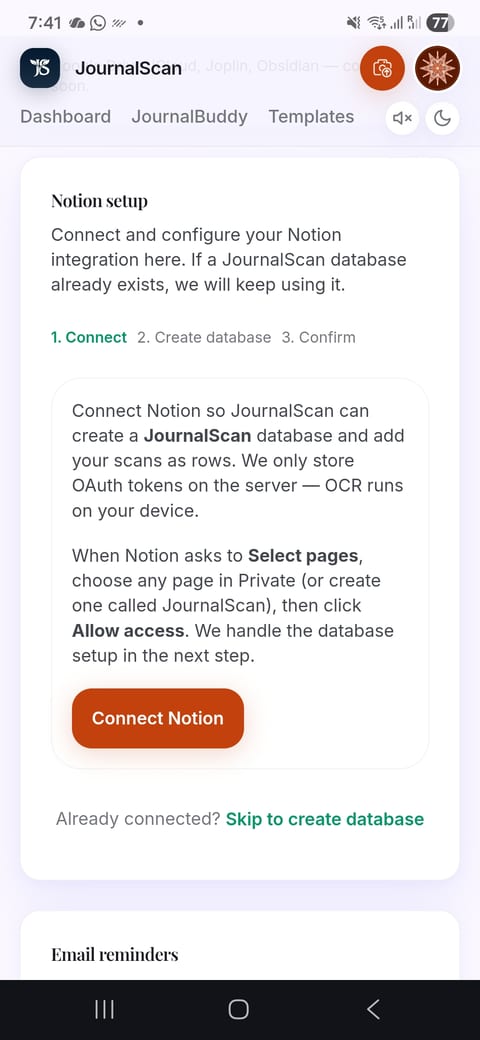
Step 2. Open the Notion sign-in page
Your device opens a browser to Notion's authorization page. On mobile you may see an “Open with” prompt — choose your preferred browser (Chrome, Safari, etc.).
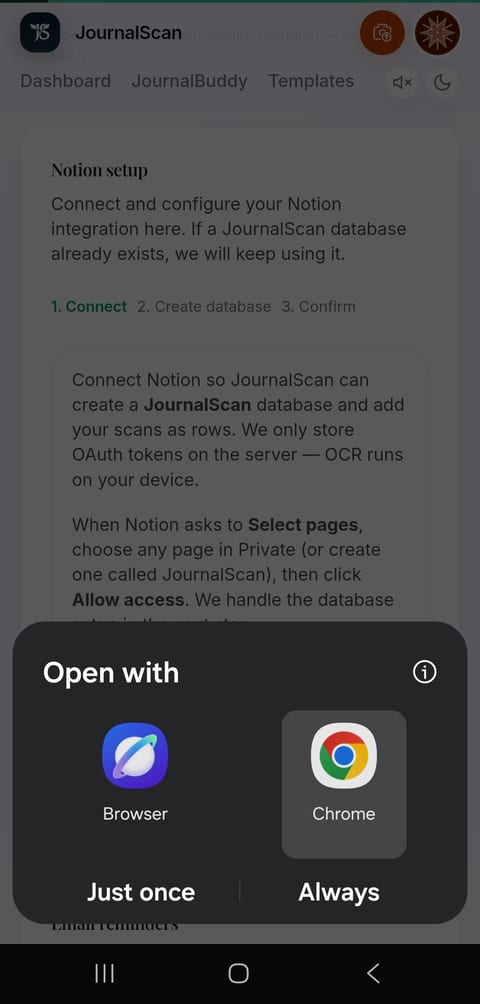
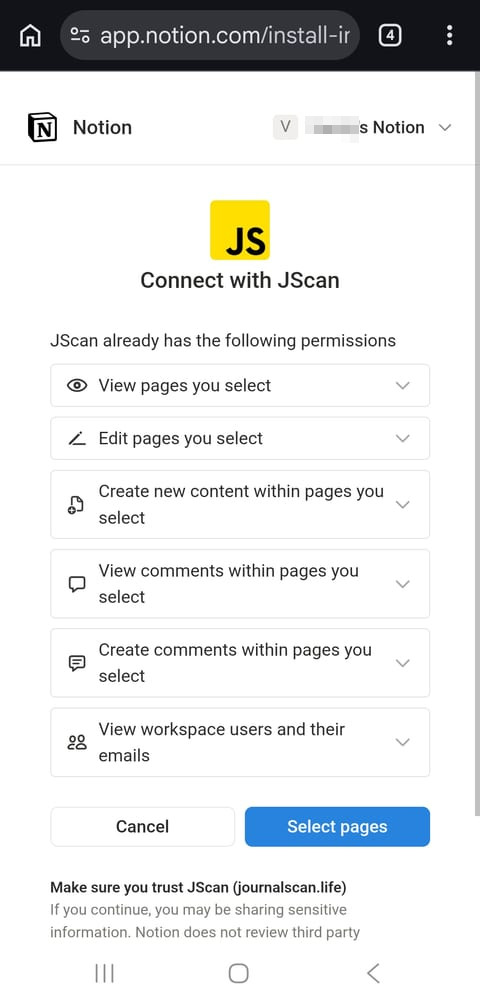
Step 3. Review permissions and select pages
Notion shows the Connect with JScan screen listing the permissions JournalScan needs. Tap Select pages to choose where the app can create your journal database.
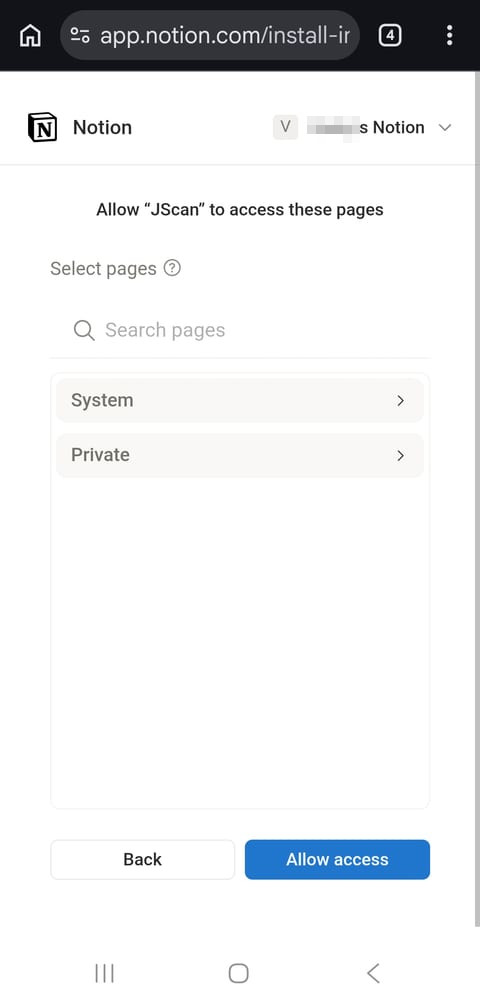
Step 4. Allow access to a Private page
Expand Private and select at least one page — any page works, or create one called JournalScan. Then tap Allow access. This lets JournalScan create or find your journal database in that workspace.
Step 5. Finish database setup in JournalScan
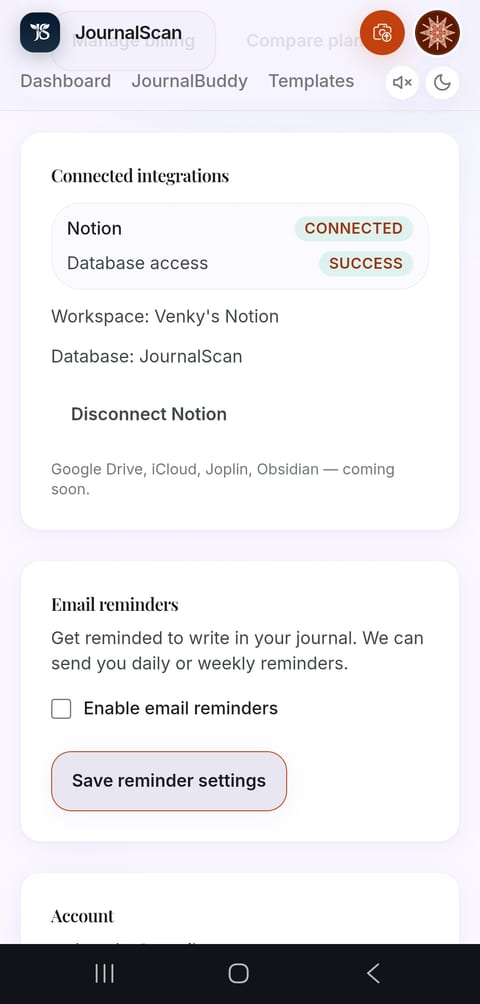
Return to JournalScan. Step 2 creates or links a JournalScan database in Notion (each scan becomes a row). Step 3 confirms the columns are ready. When finished, Settings shows Connected and Database access: Success — you can start uploading scans.


Troubleshooting
- If database setup fails, reconnect Notion and on Select pages choose at least one page under Private, then Allow access again.
- If you see “reconnect required” in the app, open Settings and tap Connect Notion to refresh your token.
- We only store encrypted OAuth tokens on our servers — your Notion pages stay in your workspace.
Do I need a Notion account?
No. You need either a configured journal archive or Notion mirroring enabled to upload. Notion is optional — connect it in Settings if you want entries mirrored to a JournalScan database in addition to your vault.
How do I scan a journal page?
After your archive (or Notion mirror) is configured, open the upload flow from your dashboard. Take a photo of any handwritten/typed page or choose an image from your device, pick a template that matches your page layout, and submit. JournalScan runs OCR, generates tags, and writes an Obsidian-compatible note to your archive (and to Notion if mirroring is on).
Is my journal data private?
Your journal content lives in your vault or Notion workspace — we don't sell your data or use it for training. We store account details, upload metadata, and encrypted OAuth tokens for services you connect. Scan images are kept only briefly while an upload completes, then removed from our storage. See our privacy policy for full details.
What happens to photos I scan?
Images are uploaded temporarily so they can be attached to your vault note or Notion page. We delete them from our storage after the upload flow finishes. Attachments remain in your vault folder structure.
How does streak tracking work?
JournalScan tracks consecutive days you upload at least one journal scan. Your dashboard shows your current streak and activity calendar. Optional email reminders in Settings can nudge you to write on a daily or weekly schedule.
Can I use an existing Notion database?
During Notion setup, JournalScan looks for a database named JournalScan in your connected workspace. If one already exists, we reuse it and add any missing columns. If not, we create it automatically — you don't need to build a database by hand.
Which archive destinations are supported?
Local Obsidian vault folders (desktop and Android via the File System Access API), Google Drive, Dropbox, and Microsoft OneDrive. You choose one primary archive destination; Notion can run in parallel as an optional mirror. See Settings for connection status and vault index options.
Still stuck? Contact us · Privacy policy